
What you need
- Windows 10 or Windows 11 (64-bit)
- A camera pointed at your face — webcam, capture card, or a video network source as NDI or OMT
- An internet connection — every time you open it during the trial, and once more when you activate after buying. After that, the app runs offline for good.
"N" and "KN" copies of Windows ship without Microsoft's media components, and without them no program can open a camera — including this one. You don't need to check ahead: the installer detects it, tells you, and offers to add the missing parts. Say yes, let it finish (a few minutes, maybe a restart), and everything works. To check manually: Settings › System › About — if the edition ends in "N", this applies to you.
Installing
- Run YourDirectorAI-Setup.
- Windows may show a blue "Windows protected your PC" screen. This appears for any program not yet certified by Microsoft and doesn't mean anything is wrong — click More info, then Run anyway.
- Accept the licence agreement and follow the steps.
- If your computer is missing anything the app needs, the installer adds it automatically. Let it finish — it may take a few minutes.
- Restart your computer if you're asked to.
Updating to a newer version keeps everything
No need to uninstall. Run the new setup on top of your current version and it replaces it. You keep your settings (cameras, scenes, inputs, hotkeys, delays), your activation if you've already bought, and your saved setup files in Documents\YourDirectorAI.
Close YourDirectorAI before you start if it's open. If you forget, the installer offers to close it for you — say yes. Only uninstall if you want the app gone for good: uninstalling clears your settings and your activation on that computer.
The first time you open it
Windows may show one or two permission windows. Both are normal and both are needed.
Camera allow it
Windows may ask whether YourDirectorAI can use your camera. Allow it. If your camera never appears in the app, check that cameras are switched on for programs: Settings › Privacy & security › Camera, and make sure "Let desktop apps access your camera" is turned on.
Network access network sources only
If you use a network camera source, or your production software runs on another computer, Windows shows a "Windows Security Alert" saying the firewall blocked some features. Tick Private networks and click Allow access. This is what lets the app find network cameras and talk to production software on other machines.
Network sources will simply never appear. To fix it, uninstall and reinstall the app, or ask whoever manages your computer to allow YourDirectorAI through the firewall. If you only use a USB webcam and your production software runs on the same computer, you can ignore this window entirely.
Your free trial, and activating after you buy
The trial
- The trial lasts 7 days.
- Each session runs for 1 hour — when the hour is up, close the app and open it again to continue.
- The trial needs an internet connection to start. If you're offline, the app shows a Retry button — reconnect and click it. When the trial ends, the same screen offers to open the purchase page.
Activating
Once you've bought YourDirectorAI, activate it from inside the app — you don't need to wait for the trial to run out.
- Open the control panel on the right and scroll down to License.
- In User, type the username or e-mail of the account you created at ydai.pro when you bought. In Password, type that account's password. These are your shop details — not a licence key, and not your Windows password.
- Click Activate.
The badge changes from Not activated to Licensed, and the section then shows which account it's tied to. The trial notice and the one-hour limit disappear straight away, no restart needed.
Activating needs internet once — after that the app runs offline for good and never asks again. Installing a newer version doesn't undo it. One purchase activates 2 computers; to move a licence, write to support@ydai.pro. The licence is tied to your Windows user account, so different Windows accounts on the same PC each use one activation.
If activation is refused
The main screen
YourDirectorAI follows your head and your eyes, and it only cuts when the two agree. Turn towards another camera and look at it, and it cuts. Turn your head while your eyes stay on the camera you're on — which is what you do naturally when you glance at your notes, react to a sound or talk to someone off to the side — and it stays put.
That is deliberate: it is what keeps the shot from cutting every time you move. The same applies coming back — the app waits until your eyes are back on the lens before returning to your main camera.
There is nothing to set up for this. The app learns where "looking at the camera" is for you while you work, and adjusts as you go.
On the left you see yourself, with tracking drawn over your face. On the right is the control panel, which scrolls. Four lights across the top show what the app is doing:
You're looking to your left.
You're looking straight ahead.
You're looking to your right.
You've stepped out of frame — the app can no longer see your face.
Below the video, Quality shows how well the app can see your face (higher is better) and Status reads OK when tracking is healthy. The lights react as you move even before you connect anything — use them to confirm the app is reading you correctly before setting the rest up.
Choosing your camera
Video source
Pick the camera that points at your face. USB webcams and capture cards appear straight away, at the top of the list. Cameras coming over your studio network appear underneath, grouped as NDI and OMT — give them a few seconds to be found, and reopen the list if one is missing. A network source takes a moment to start and shows a low-resolution image first while it connects.
Whichever source you pick is remembered, and the app reconnects to it by itself next time. This is the camera that watches you — it doesn't have to be a camera your audience ever sees.
Camera settings
Opens your camera's own settings window, if it has one, for exposure, focus and white balance. Not every camera provides this.
Connecting your production software
Three ways to connect — use whichever suits you. If your software isn't OBS or vMix, use hotkeys. You can use more than one method at the same time.
OBS
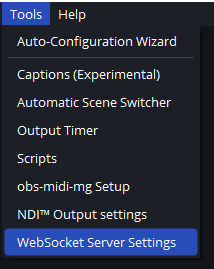
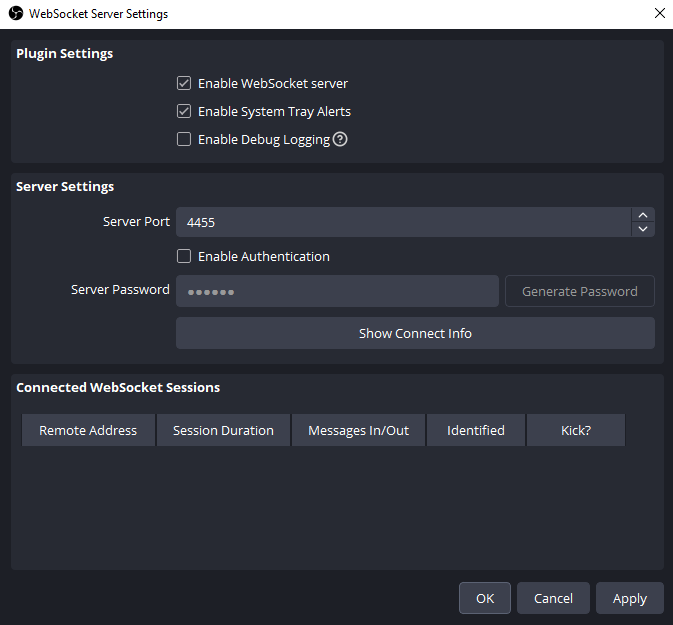
WebSocketTurn on the OBS WebSocket server: Tools › WebSocket Server Settings. Enter the same port and password here, then click Connect. Once connected, choose which scene to cut to for Left, Center, Right and Out.
vMix
Web ControllerTurn on the vMix Web Controller: Settings › Web Controller. Enter the address and port here, then click Connect. Once connected, choose which input to cut to for Left, Center, Right and Out.
You type the address and the port in two separate boxes — not a full web address. What to put in them:
- vMix on this same computer — address
127.0.0.1, port8088. This is the usual case, and it's already filled in. - vMix on another machine — that machine's address on your network, something like
192.168.1.24, and the same port8088.
The port is only different if you changed it yourself in vMix, under Settings › Web Controller. Whatever number vMix shows there is the one that goes here.
To check it before you connect, open http://127.0.0.1:8088/api/ in a browser on the vMix machine — replacing the address and port with yours. A page full of text starting with <vmix> means the Web Controller is on and reachable. An error page means it's switched off, or the port is a different one.
The same web address also lets you try a cut by hand, which is the quickest way to prove vMix is listening before you involve YourDirectorAI at all. In a browser on the vMix machine:
- See every input, with its number and name —
http://127.0.0.1:8088/api/ - Cut to input 1 —
http://127.0.0.1:8088/api/?Function=CutDirect&Input=1 - Cut to input 2 —
http://127.0.0.1:8088/api/?Function=CutDirect&Input=2 - Cut to an input by its name —
http://127.0.0.1:8088/api/?Function=CutDirect&Input=Camera%202
That last one looks strange for a good reason. A web address can't contain spaces, so the space in a name like "Camera 2" is written as %20 — that's all Camera%202 means. vMix is strict about the rest: it has to be the input's full title, spelled exactly as it appears there, capital letters included — camera 2 or a shortened version matches nothing and the cut simply won't happen. Numbers never need any of this, which is why they're the easier way to run a quick test.
If vMix cuts when you load one of those, everything is in place: the address, the port and the Web Controller. If it doesn't, the problem is on the vMix side, not in YourDirectorAI.
Those numbered examples are for testing by hand. YourDirectorAI doesn't use the number — it uses each input's own internal ID, which vMix keeps for the life of the input. So if you reorder your inputs, or add one above the others, your saved Left / Center / Right / Out keep cutting to the same cameras. Numbers move; the ID doesn't.
Hotkeys
any softwareThe most flexible option — not limited to OBS or vMix. Switch Hotkeys on and the app presses a key combination each time you turn your head. Anything driven by a keyboard shortcut can be driven by YourDirectorAI: streaming software, video switchers, playback, presentation software, camera controllers, lighting desks, recorders.
- Decide the key combo for each state. Defaults are Alt+1 Alt+2 Alt+3 Alt+4.
- Type those same combinations into the other program as its own shortcuts, so it knows what to do.
- Switch Hotkeys on here.
One camera for both: OBS and the tracker
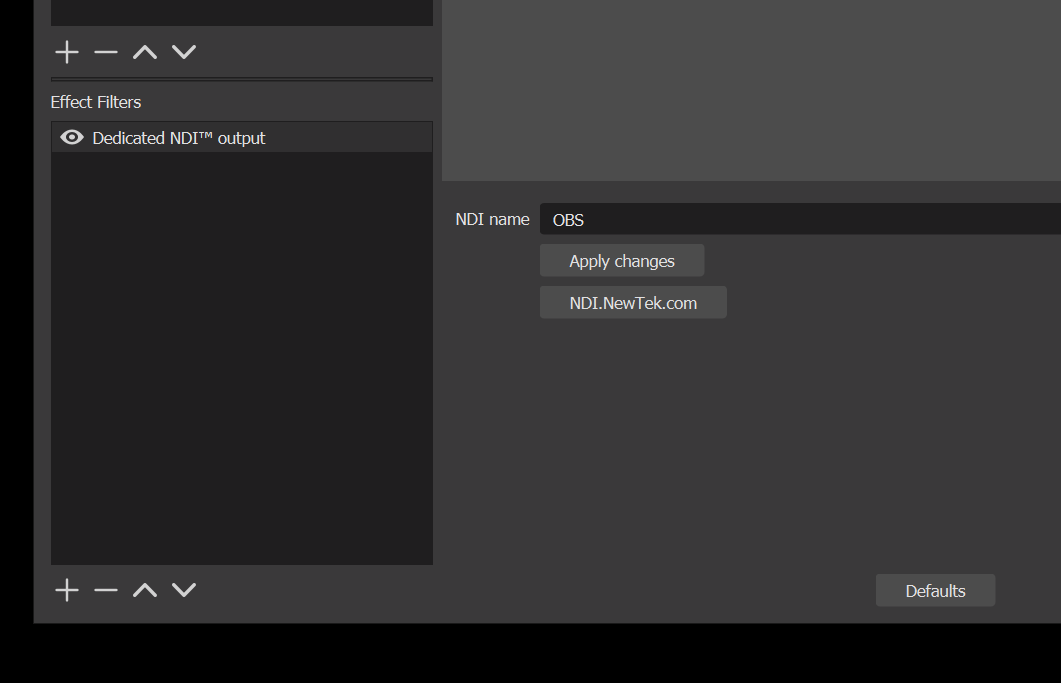
If your camera is already going into OBS, you don't need a second one for YourDirectorAI. OBS can hand the same picture out over the network as an NDI source, and YourDirectorAI picks it up from there — one camera, feeding your production and the tracking at the same time. For this you need OBS's NDI plugin, DistroAV (it used to be called obs-ndi) — it's free — and the NDI Runtime it asks you to install alongside it. YourDirectorAI itself needs neither: it brings its own NDI support built in.
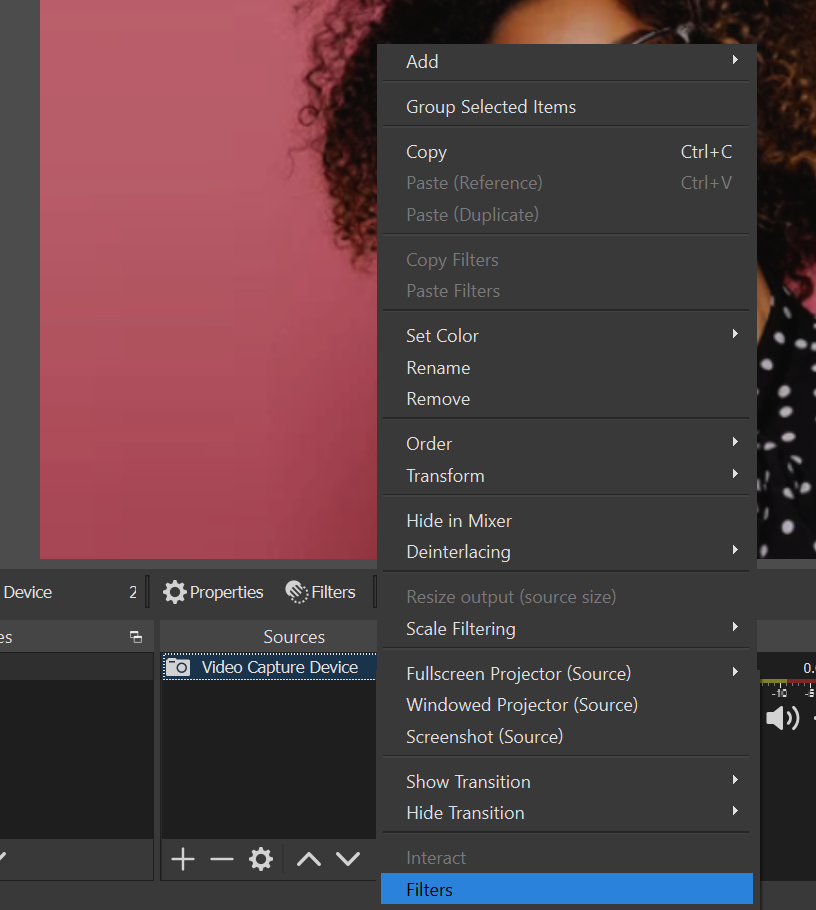
- In OBS, right-click the video capture source that shows your face and choose
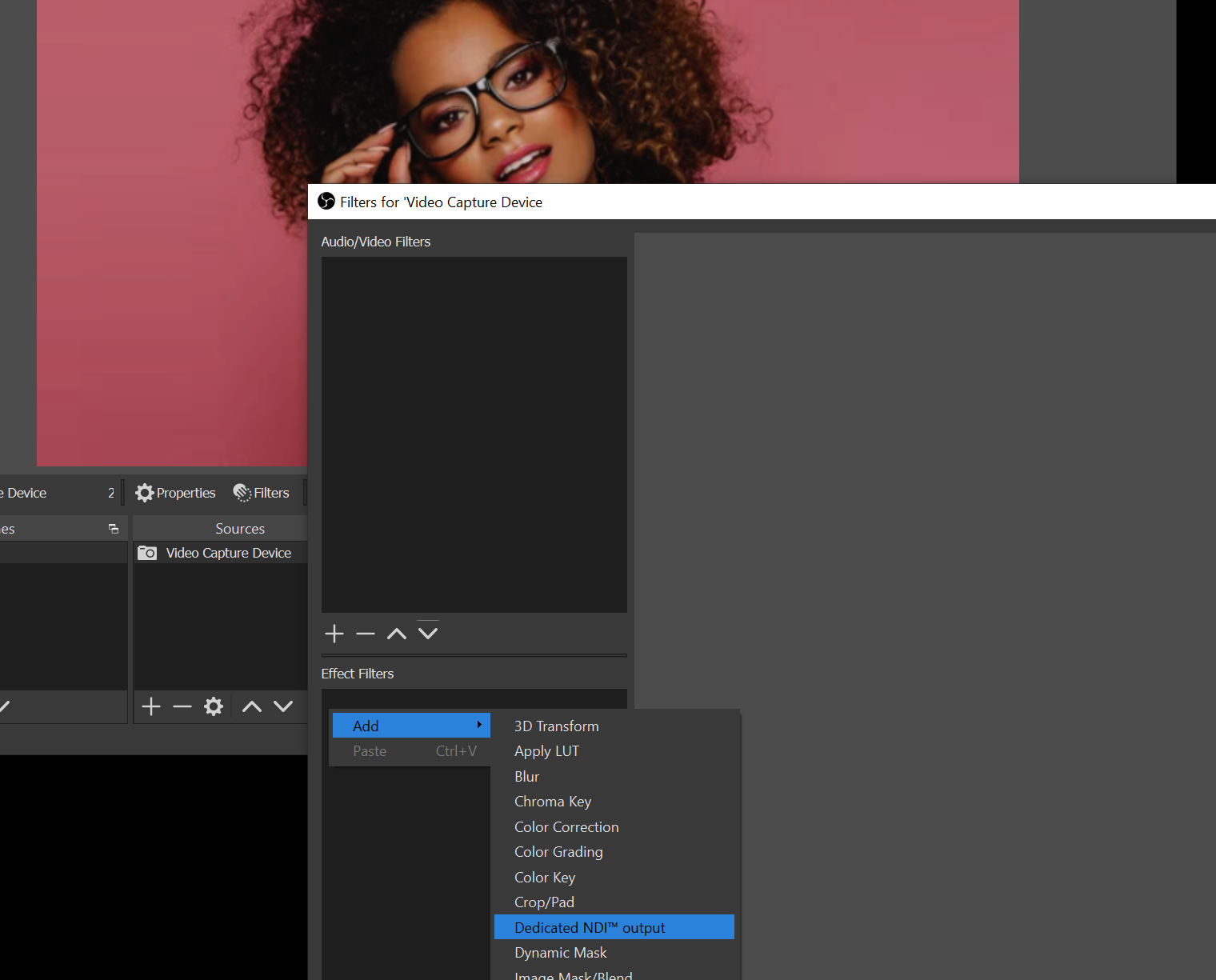
Filters. Use the scene where you're framed roughly in the centre. - Under Effect Filters, add
Dedicated NDI Output. - Give it a name you'll recognise — "OBS" works fine. That name is what you'll look for later.
- Close OBS and open it again, so the NDI source is published on the network.
- In YourDirectorAI, open Video Source and pick it from the NDI group.
Run both at the same level. If the other program was started as an administrator, YourDirectorAI must be started as an administrator too, or the keys won't reach it. Either run both normally, or run both as administrator.
Not every program listens. Hotkeys work by sending the keystroke to whatever is listening on your computer, and some software simply doesn't accept shortcuts sent this way — it may only react to keys typed while its own window is in front, or ignore them altogether. If a program doesn't respond, that is why, and it isn't something you can fix from here. Use its OBS or vMix connection instead if it has one.
We're adding OSC and MIDI so YourDirectorAI can talk to your gear directly, instead of pretending to be a keyboard. Both are the languages production equipment already speaks, so control will be more reliable and reach more of what you use — switchers, consoles, media servers and show-control systems that never responded to hotkeys.
Fine-tuning
Out scene delay
How many seconds to wait before cutting to your Out scene after you leave the frame. A short delay stops a moment out of shot — reaching for something, leaning out — from cutting away. Three seconds suits most people; set it to 0 to cut away immediately.
Voice feedback
Switch this on and the app says each switch out loud — "left", "center", "right", "out". Handy while setting up, since you can test your head movements without watching the screen. Most people turn it off once they're live.
There's nothing to calibrate. The app learns how far you personally turn your head and adjusts as you work.
Saving your setup
Your settings are remembered automatically and are still there next time you open the app. The Config section holds two extra buttons:
- Save — writes your setup to a file in
Documents\YourDirectorAI. Useful for backups, moving to another computer, or keeping one file per show. - Open — loads a setup you saved earlier.
Getting good results
- Light your face from the front. Strong light behind you, like a bright window, makes you harder to see.
- Sit so your whole head is comfortably in frame, and keep roughly the same distance while you work.
- Turn your head and look — move your eyes with your head, the way you naturally would when you actually want to talk to that camera.
- Watch the four lights while you rehearse a few turns before going live.
- Glasses, hats and headphones are fine. Anything covering your face is not.
If something is not working
It stopped switching altogether
Check whether the switcher is locked: the word LOCKED appears across the picture. Press your lock key to release it. See section 12.
Close any other program using the camera — video calls are the usual culprit — then reopen YourDirectorAI. Check the camera setting in section 3. On a Windows "N" edition, see section 1.
The firewall window in section 3 was probably cancelled. See that section.
Add light on your face and check you're fully in frame. See section 10.
Turn your head a little further and more deliberately, and give the app a minute to settle — it adapts to you as you use it. Check you're centred in the frame.
Make sure a scene or input is chosen for all four states, and that the connection still shows as connected.
Check both programs are running at the same level — both normal, or both as administrator. See section 7.
That's the trial's session limit — the app doesn't close, it returns to that screen. Close it and open it again to carry on. See section 4.
The app has to reach ydai.pro once to activate. Check your internet; on a company or studio network, ask whoever manages it whether ydai.pro is reachable. Try again — nothing is lost.
Look at the License section: if it says "Licensed", you're activated and the notice is gone from then on.
Installing over the top keeps everything. Settings are only cleared if the app was uninstalled first, or if you're now logged into Windows under a different user account.
Locking the switcher
Sometimes you don't want to be cut away from. You're demonstrating something to camera, reading a long passage, or a guest is talking and you keep glancing at them. For those moments you can freeze the switcher on one shot with a single key, and free it again with the same key.
- Open the Lock section in the control panel and switch it on.
- Choose the key. Escape to start with — click the box and press whatever key you prefer.
- Under Hold on, choose where it should park: Wherever it is keeps the shot you're on at that moment, or pick Left, Center, Right or Out to always land on the same camera.
Press the key and switching stops. Press it again and the tracker takes over from wherever you're looking. While it's locked, the word LOCKED sits across the middle of the picture, so you can tell at a glance — being locked without realising it looks exactly like the tracking having broken.
The key is watched across the whole computer, so you don't have to bring YourDirectorAI to the front to use it — which is the point, since during a show you'll be in your production software. It also doesn't steal the key from anything else: press Escape and the program you're actually using still receives it as normal.
Locked doesn't mean asleep. The camera keeps tracking you and the four lights keep moving, so you can see it still reading you correctly. It simply stops sending anything out — no scene changes, no vMix cuts, no hotkeys, no MIDI.
Featured work
We keep an eye on what people are making with YourDirectorAI — solo shows cut like they had a crew, interviews, classes, live sets, streams that never needed a second pair of hands.
If you're a producer or creator and you've used it on something you're proud of, send us the link. The work we find strongest gets featured on our channels — credited, and linked straight back to yours.
We don't repost everything we're sent. We choose the pieces that make other producers stop and ask how it was done, which is precisely why being picked is worth something: your work lands in front of an audience that produces for a living.